

Key takeaways
- The Upstart app is a free download on the Apple App Store that lets borrowers check application status, make payments, and access Cash Line™
- Cash Line™ is available within the Upstart app, so there’s no separate download.
- Once you’re signed in, you can manage your account, make payments, and stay up to date on your loan from your phone.
The Upstart mobile app gives borrowers a convenient way to manage a loan through Upstart from their iPhone. You can check your application status, make payments, and access Cash Line™ in the app, all without calling or emailing support.
The app is designed for borrowers with an existing loan through Upstart or an application in progress. Here, you’ll learn how to download the app, sign in, use its key features, and troubleshoot common issues.

What Is the Upstart App and Where to Get It
The Upstart app lets you apply for a personal loan and manage your account from your phone after you’ve applied for or received a loan through Upstart. From the app, you can check your application or loan status, make payments, view account details, and access Cash Line™.
The Upstart app is currently available to download through the Apple App Store. The Upstart mobile app is not yet available for Android devices, but an Android version is planned for the future. If you’re using an Android device, you can manage your account through Upstart’s website instead of a native app.
Using the app makes it easy to stay on top of your account without contacting customer support for routine tasks like checking your balance, confirming a payment, or viewing your application status.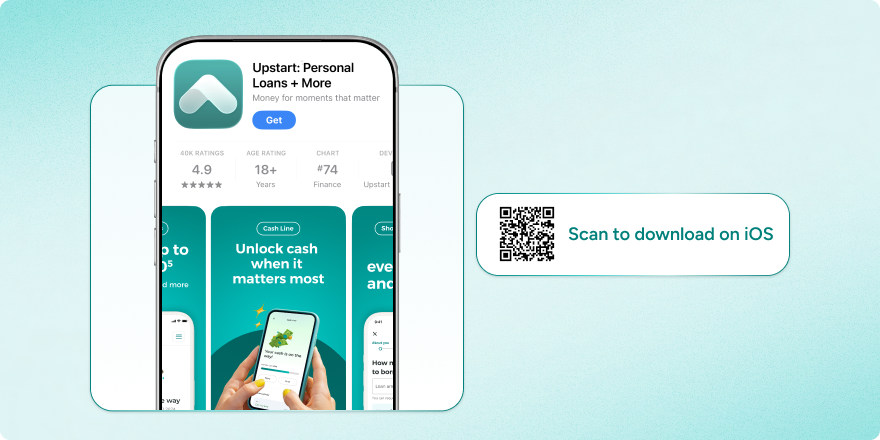
Does Cash Line™ Have Its Own App?
No, Cash Line™ doesn’t have its own app. Cash Line™ is available within the Upstart app and isn’t a separate download.
Once you’re signed in, you can access Cash Line™ from the same app you use to check your application status, make payments, and manage your account.
How to Download the Upstart App
Downloading the Upstart app only takes a few minutes.
- Open the App Store on your iPhone.
- Search for “Upstart.”
- Download and open the app
- Sign in with your existing Upstart account, or create an account if you’re a new user.
- Set up Face ID, Touch ID, or a passcode for faster, more secure access if you’d like.
If you’re using an Android phone, sign in through Upstart’s mobile website to manage your account.
How to Set Up Your Upstart Account and Log In
If you already have an Upstart account, sign in with the same email address and password you use online.
If you’re new to Upstart, you can create an account after applying online or through the app.
If you’ve forgotten your password, select the password reset option from the login screen and follow the instructions sent to the email address associated with your account.
For added convenience, you can enable Face ID, Touch ID, or a passcode after signing in so you don’t have to enter your password every time you open the app. These features add an extra layer of protection by helping ensure that only someone with access to your device can open the app.
What You Can Do in the Upstart App
Once you’re signed in, you can manage many of your day-to-day account tasks in one place, including:
- Check your application or loan status.
- Make one-time or scheduled payments on a loan through Upstart.
- View your payment history, current balance, and next payment due date.
- Access Cash Line™ in the app without downloading anything separately.
- Update your contact information or linked bank account.
Troubleshooting Common App Issues
If you’re having trouble using the Upstart app, these steps can help resolve the most common issues.
- Your login isn’t working. Make sure you’re signing in with the email address associated with your account. If needed, reset your password and confirm you’re using the latest version of the app.
- You don’t see certain loan options. This usually reflects product availability, which can vary by state, rather than an issue with the app itself.
- You’re not receiving a verification code. Check your spam or junk folder, then request another code before contacting support.
- Your payment hasn’t appeared yet. Payments may take some time to process, so wait before assuming there’s an issue with your account.
If you’re still experiencing problems, try signing out and back in, restarting the app, or reinstalling it before contacting Upstart support.
Keeping Your Account and Information Secure in the App
Always download the Upstart app from the official Apple App Store. Avoid third-party downloads or apps with similar names that aren’t affiliated with Upstart.
You can also help protect your account by following a few simple security practices:
- Enable Face ID, Touch ID, or a passcode to secure access to the app.
- Be cautious of phishing emails or text messages asking for your login credentials.
- Review your account activity regularly and report anything you don’t recognize.
If you’re using an iPhone, download the Upstart app from the App Store to manage your account on the go. If you’re using Android or a desktop computer, you can access your account through upstart.com.
Frequently Asked Questions
What can you do on the Upstart app?
You can apply for a personal loan, check your application or loan status, make payments, view your payment history and balance, access Cash Line™ in the app, and update certain account information.
Is the Upstart app safe to use?
The Upstart app is designed to help you manage your account securely. For the best protection, download it only from the official Apple App Store, enable Face ID, Touch ID, or a passcode, and never share your login credentials in response to unsolicited emails or text messages.
Does checking your rate on the Upstart app hurt your credit score?
Checking your rate through Upstart typically involves a soft credit inquiry, which doesn’t affect your credit score¹. If you move forward with a loan application, a hard credit inquiry will be required.
Can you make loan payments through the Upstart app?
Yes. You can make one-time payments or schedule future payments directly through the app.
Is the Upstart app available for both iPhone and Android?
The Upstart app is currently available for iPhone. Android users can manage their account through Upstart’s mobile website.
How do I log in to the Upstart app?
Sign in using the same email address and password you use for your online Upstart account. You can also enable Face ID, Touch ID, or a passcode for faster access after logging in.
What should I do if the Upstart app login isn’t working?
First, make sure you’re using the correct email address and password. If that doesn’t work, reset your password and confirm you’re using the latest version of the app before contacting support.
What do Upstart app reviews say?
The Upstart app currently holds a 4.9-star rating on the Apple App Store, based on more than 40,000 ratings, though ratings can shift over time. Reviewers often cite the fast, fully online application process, while some note that interest rates and origination fees can run higher than expected.
Does Cash Line™ have its own app?
No. Cash Line™ is available within the Upstart app and doesn’t require a separate download.
Does checking your Cash Line™ eligibility affect your credit score?
Checking your eligibility will involve a soft credit inquiry, which doesn’t affect your credit score¹. If you decide to move forward, a hard credit inquiry will apply.




 Won't affect your credit score¹